Glyphs MCP Desktop
Glyphs MCP.app brings installation, agent connections, server controls and font projects into one native macOS application. The 2.1.0/build 63 release adds project template previews and readable skill titles. Companion Plugins, AI Agents and Skills have focused pages beneath Setup. The planned Tasks view is not included. The app is distributed directly through the signed and notarized GitHub release, outside the Mac App Store.
Setup and the menu bar
The 2.0.2 release presents its window before payload extraction and verification. An initialization strip shows actual stages, an indeterminate indicator and expandable details. After five seconds it explains that the check is still running; you can browse while it finishes. Failed checks offer Retry and View Logs. Setup and Skills share background payload verification. Quiet login launches remain quiet. Optional tool downloads start only from their Setup cards.
Setup is the home page. It shows the MCP service, Glyphs connection, current work, installed components and agent connections. Start or stop the server, open Glyphs, refresh status and manage installation without navigating to a separate page.
The menu-bar icon opens the same server and activity information in a compact
popover. A steady cyan (#00BBD0) dot indicates an active font task or a
sidecar-owned worker. A running but idle server has no dot; connection failures
clear it until activity can be confirmed again.
One monitor serves Setup and the menu bar. Visible content refreshes every two seconds during work and every five seconds while idle. With both hidden, native job-file notifications wake the authenticated status reader; two-second checks continue only while the menu-bar dot indicates work. A failed connection preserves the last observation with a stale indication.
Start, Stop and port changes use the same control helper as Glyphs. Stop and component replacement refuse active preparation, application, cancellation or recovery. Prepared results and job identities remain in the managed job store across controlled service restarts. An uncertain native result must be reconciled through its existing job ID; it is never automatically resubmitted.
Components and connections
The component cards manage Glyphs MCP, Curve Inspector and Reference Inspector. Connection cards manage Codex, Claude Code, Claude Desktop and Cursor. A missing item offers Install; an installed item offers Update and Remove; a failed operation offers Retry. Removal requires confirmation.
Install All immediately queues all three components and four connections. If every item is installed, the primary action becomes Update All. Component changes run as one atomic transaction before connectors are configured in order. A failed connector remains failed on its own card and does not stop the remaining connector work. Other card actions are disabled while the queue is active.
Cards remain on Setup throughout the operation and show Queued, Installing, Updating, Removing, Installed or Failed. If Glyphs is running, Setup shows inline guidance and a Quit Glyphs action that uses Glyphs' normal save prompt before replacement continues.
Codex and Claude Code receive the MCP connection and managed skills. Claude
Desktop receives its MCP configuration. Cursor receives a complete local
plugin under ~/.cursor/plugins/local/glyphs-mcp. Configuration patchers back
up existing files, preserve unrelated entries and custom options, and mutate
only Glyphs MCP. Cursor updates and removal require a verified installer-owned
bundle; modified or unowned content becomes a visible conflict.
Curve Inspector
After installation, enable View → Curve Inspector in Glyphs to inspect curve geometry and handles directly on the canvas. Inspect & Repair… opens a compact floating panel with Star/Default node modes, Max change and All masters. Apply uses the selection or current view scope; no preview is required. Curve Inspector 0.5.2 reports why a repair made no change.
Reference Inspector
Choose a reference under Edit → Comparison Reference, then enable the Reference Inspector overlay in the View menu. See visual review for both companion workflows.
Check for Updates… uses Sparkle and the configured release channel. Automatic checking is enabled by default and can be disabled in Settings. Updating the desktop app and reconciling bundled components are separate operations.
Closing, quitting and login
The local v2 companion adds a six-slide introduction on first interactive launch: Welcome, Your font/your decisions, How it connects, Get ready, What's new in v2, and community support. Skip to setup or Start setup opens Setup. Replay starts at slide one through File → Welcome & Support or the sidebar. The completion preference suppresses later automatic presentation; optional desktop login launches quietly. This introduction is separate from Glyphs' heart-button support panel.
- Closing the dashboard keeps the menu-bar interface available.
- Quit Glyphs MCP closes the desktop interface. The sidecar service keeps its own startup setting.
- Settings → Open Glyphs MCP at login is off initially. When enabled, login opens the menu-bar interface without opening the dashboard.
- Start the MCP server at login is a separate setting preserved by updates.
- Menu-bar visibility defaults on and can be changed in Settings.
Projects
The Project destination below Setup opens the template gallery. The collapsible My Project section lists recent folders and restores the last selected project. Use its More menu to open a folder or create a project.
Selecting a project opens Finder, editor and Git-client shortcuts plus a
read-only Git diff browser. The resizable left pane groups changed files into
folders and supports filtering; the right pane loads only the selected file.
Source diffs offer unified or split layouts and optional wrapping. Individual
files under .glyphspackage/glyphs/ also offer Visual/Text modes, layer and
overlay controls, guides and difference navigation. Binary, invalid UTF-8,
symlink and over-2-MiB sides show a clear unavailable state. The browser cannot
edit, comment, stage or commit.
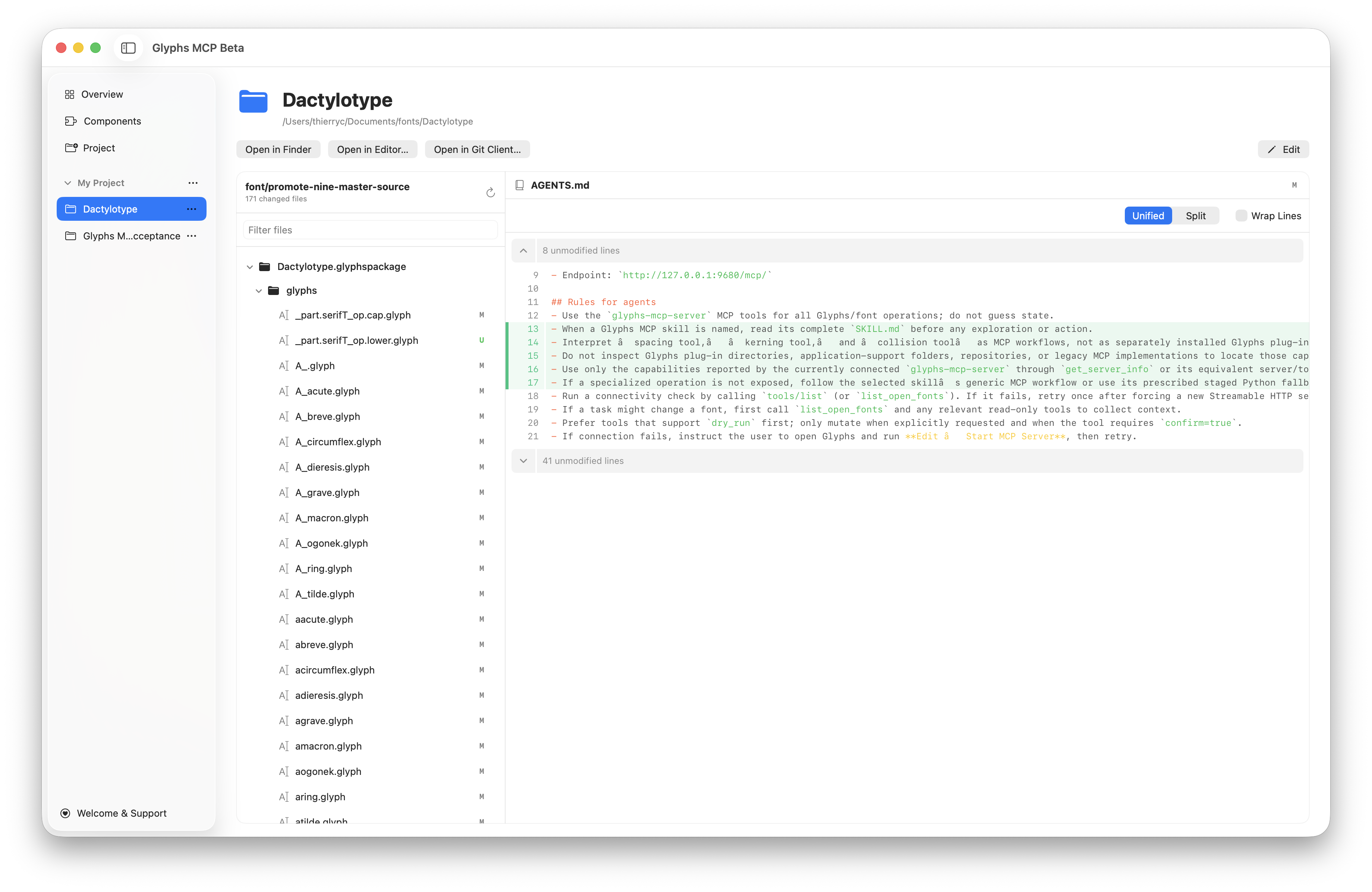
Each project row has a … menu for Finder, settings and removal from the list. These actions preserve project files.
Troubleshooting logs
The discreet doc.text.magnifyingglass button in the Setup header opens one
reusable Glyphs MCP Logs window. It combines installation and update events,
card failures, recent server events, sidecar.log and sidecar-error.log.
Filter or refresh sources, copy selected or all text, copy a redacted
diagnostic report, or reveal the log folder in Finder. Log text is bounded,
monospaced and selectable; missing files do not prevent the window from
opening. Copied diagnostics redact tokens, credentials and authorization
headers.
See installation, projects and templates, and troubleshooting. Port changes are available after the current font task finishes; update agent connections after changing the port.