Codex and ChatGPT plugin UI
The Glyphs MCP repository plugin packages three parts that belong together:
- 11 reusable Glyphs skills
- the local Glyphs MCP server connection
- an optional feedback UI for hosts that support MCP Apps
The plugin gives ChatGPT and Codex a stable package identity while Glyphs remains the editor. OpenAI describes plugins as packages that combine skills, MCP server connections, and optional UI; see Package your plugin.
The underlying plugins/glyphs-mcp package also powers the optional Claude
Code, Cursor, and GitHub Copilot CLI plugins. This page covers only the richer
embedded UI available to compatible OpenAI hosts; every host shares the same
11 skills, localhost MCP configuration, and 1.11.0 package version.
Install the repository plugin
Install the native Glyphs MCP plugin first and start its server from Edit → Glyphs MCP Server. Then add this repository marketplace and install the plugin:
codex plugin marketplace add thierryc/Glyphs-mcp
codex plugin add glyphs-mcp@glyphs-mcp
Start a new Codex task after installation. The plugin connects to:
http://127.0.0.1:9680/mcp/
The native macOS and terminal installers do not install or remove the repository plugin. ChatGPT or Codex owns that installation lifecycle.
Feedback states
The versioned ui://glyphs-mcp/feedback-v1.html resource presents bounded
feedback for the current server, font, glyph, or reviewed plan.
| State | What the panel shows |
|---|---|
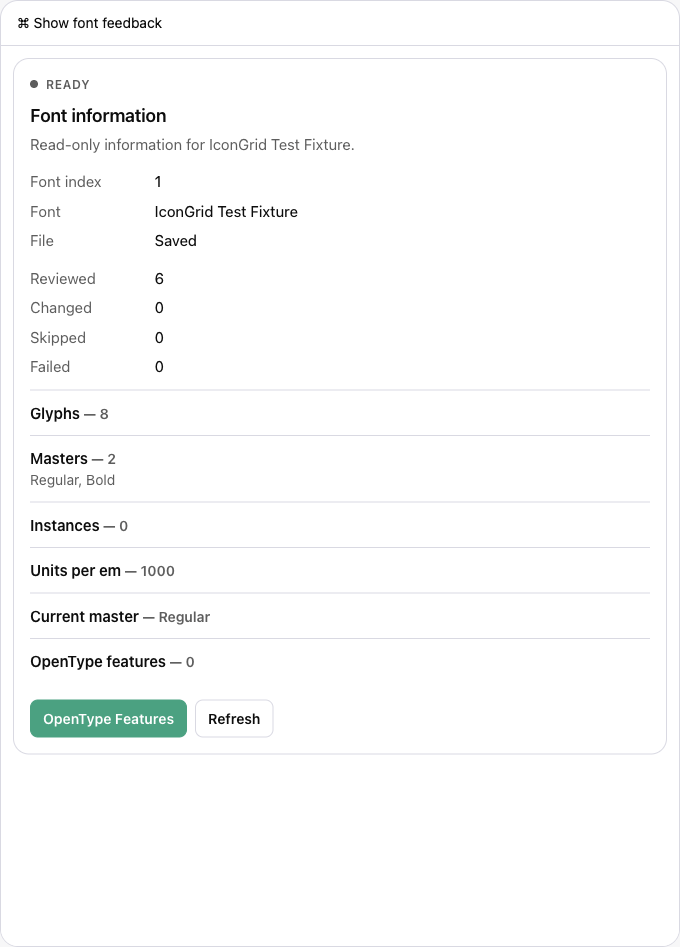
| Information | Server, font, glyph, and OpenType summaries. |
| Dry run | Reviewed changes before any mutation. |
| Confirmation | The exact approved action plus Apply and Cancel controls. |
| Progress | Reviewed, changed, skipped, and failed counts while work runs. |
| Completion | The verified outcome returned by the Glyphs tool. |
| Recoverable error | A stable error code, safe message, and next action. |
The panel limits each state to two primary actions. Font feedback can expose OpenType Features and Refresh; reviewed plans can expose a guarded apply action and a way to run the review again.
Light and dark themes
The panel uses the host's standard surface, text, border, and accent variables. It follows host theme changes and keeps built-in fallbacks for clients that do not provide every token.
Light
Dark
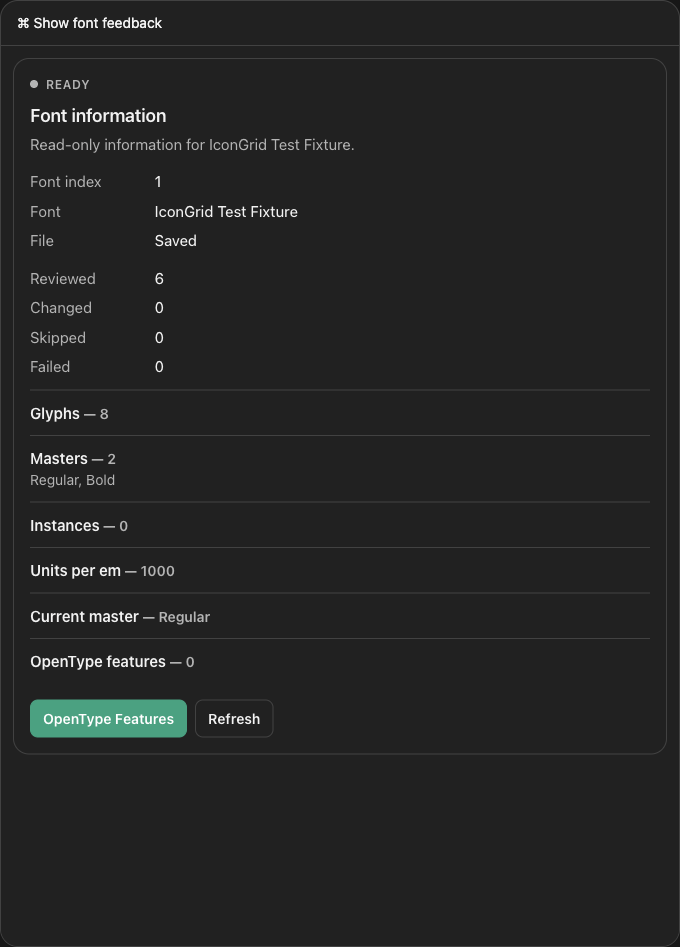
Typography, spacing, focus states, borders, and controls use the same compact visual hierarchy in both themes. The layout wraps actions and avoids horizontal overflow on narrow cards.
How panel actions work
On a compatible host, the UI uses the standard MCP Apps server-tool bridge.
It also supports the host compatibility bridge used by existing OpenAI
surfaces. If neither bridge is available, the panel returns
bridge_call_unavailable and tells the user to ask the host to run the same
Glyphs tool directly.
Tool results remain useful without the UI. Every feedback tool also returns concise text and structured content so Claude, Cursor, and other MCP clients can continue the conversation. This follows OpenAI's guidance that custom UI is optional and tool results should work without it; see How MCP tool calls work.
Safety boundaries
The panel is a review surface, not a second font editor:
- it does not expose editable paths, coordinates, metrics, or feature code
- it does not provide file navigation, arbitrary Python, tabs, or a drawing canvas
- mutations require a fresh dry run and explicit confirmation
- reviewed plans expire after ten minutes and are consumed before mutation
- stale, partial, failed, or uncertain results require a new review
- no feedback action saves the font automatically
Other clients
Claude, Cursor, and other MCP clients can use the same tools through the local Streamable HTTP endpoint. They can also load the skills from supported filesystem locations. They should not be expected to render the OpenAI-specific feedback panel; concise text and structured tool results are the portable fallback.
Continue with Connect a client and Use skills for exact setup paths.
Troubleshooting
- If the card never initializes, reload the client or start a new task.
- If a button reports
bridge_call_unavailable, ask the agent to call the named Glyphs tool directly. - If the client shows duplicate Glyphs connections, keep the repository plugin connection and remove only the legacy global Codex MCP entry.
- After upgrading Glyphs MCP, reconnect the client so it refreshes the
catalog-driven
tools/listmetadata.