Installation
Glyphs MCP ships as a Glyphs plug-in plus a small Python dependency set. The macOS installer supports Glyphs 3 and Glyphs 4 beta; install it first, then start the local MCP server from inside Glyphs.
Recommended path
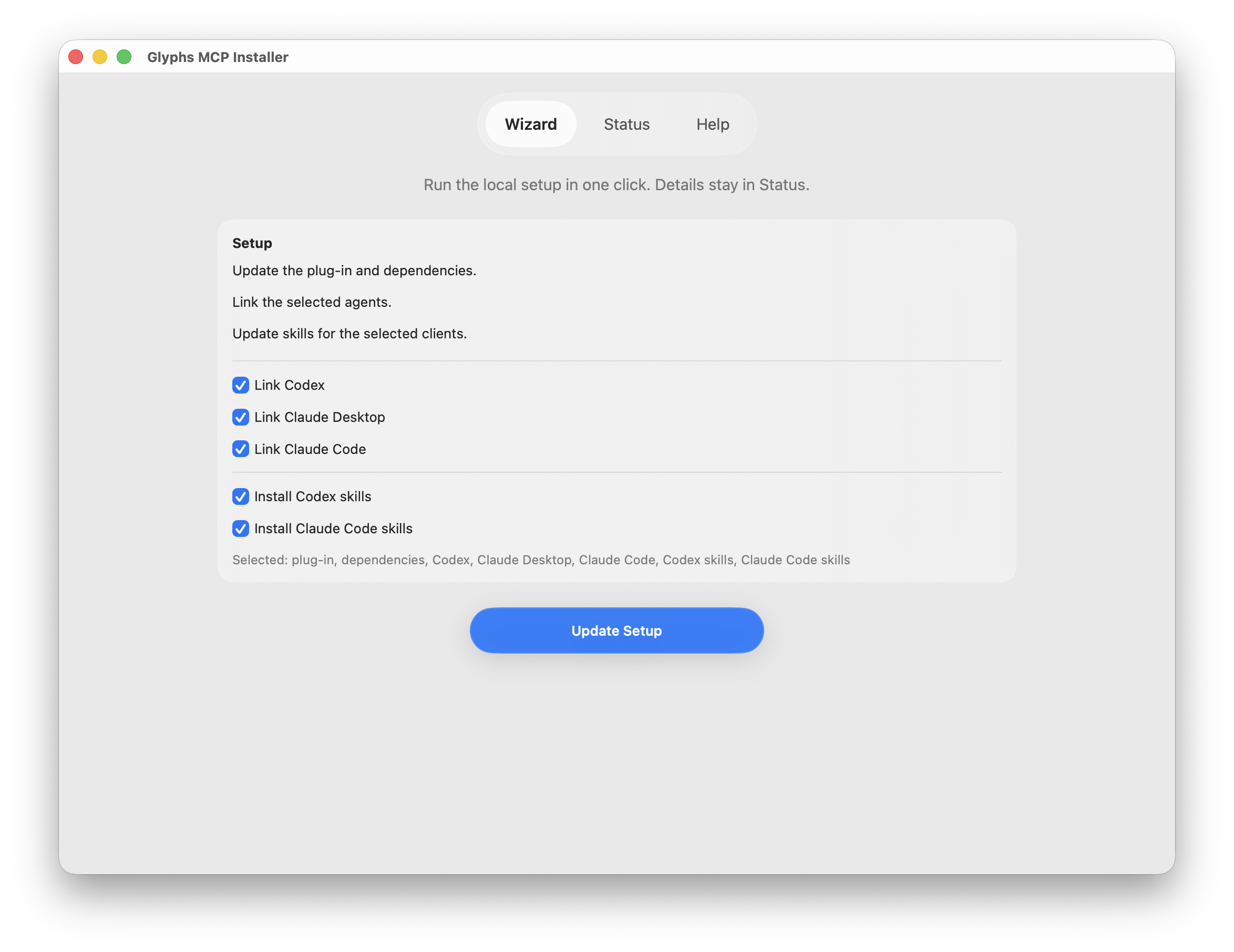
Download the signed and notarized macOS installer. It installs the already signed plug-in without changing its signature, installs dependencies where Glyphs can load them, links supported clients, and can install bundled agent skills.
The macOS app detects Glyphs 3 and Glyphs 4 separately. If both are installed, both are selected initially, and you can choose either version or install for both. A missing version is shown as not detected and cannot be selected.
For version 1.6.0 and later, choose Make future updates easier for each Glyphs version you use. When a new version is available, the server window shows a small green banner. Prepare Update downloads and safely prepares that version without replacing the running or installed plug-in. Use View Release to install it when you are ready. Users upgrading from 1.5.4 must install 1.6.0 manually because the earlier plug-in does not contain this feature.
Supported automatic links:
- Codex App
- Codex CLI
- Claude App
- Claude CLI
Agent plugins are a separate, optional setup. Version 1.11.1 includes one shared repository package for Codex/ChatGPT, Claude Code, Cursor, and GitHub Copilot CLI, but the installer does not add, update, enable, or remove those plugins. Each host owns its plugin lifecycle. Existing standalone skills and manual MCP configuration remain supported; see Use skills and optional plugins.
Downloads:
The terminal installer is also available from a checkout:
python3 install.py
Its default Copy mode downloads the installer ZIP for the checkout's exact version. Before installation it verifies the published checksum, Developer ID identity and Team ID, installer Gatekeeper acceptance, and the embedded plug-in's signature and stapled notarization ticket. Installation is transactional and preserves those exact bytes. The release must already be published and the machine must be online.
On macOS, you can also double-click RunInstall.command in Finder to launch
the same terminal installer.
Requirements
- macOS with Glyphs 3 or Glyphs 4 beta
- Python 3.11-3.14
- Local access to the repo checkout or a downloaded release package
If python3 is missing or too old, install Python 3.14 from python.org and rerun the installer.
Glyphs 3 backward compatibility is kept for the shared MCP server code where possible. The macOS app detects it automatically. The terminal installer still defaults to Glyphs 4; for a terminal-based Glyphs 3 install, use --glyphs-version 3.
What the installer does
- Runs Check Python environment with the exact interpreter selected for every Glyphs target before making persistent changes.
- Uses one ordered path plan: external or repository-selected Python prioritizes
its user site with that target's
Scripts/site-packagesas fallback; Python physically embedded in a Glyphs app prioritizes the Glyphs folder. - Stops when the package copy that can win has an incompatible Python ABI or Mac architecture, an unapproved origin, or an escaping symlink. It reports lower-priority duplicates without deleting or moving them.
- Detects installed Glyphs 3 and Glyphs 4 applications and lets you target either or both.
- Installs Python dependencies for Glyphs.
- Installs or links
Glyphs MCP.glyphsPlugininto Glyphs' plug-ins folder. - Can link supported local MCP clients.
- Can copy bundled Glyphs MCP skills into Codex or Claude Code skill directories.
- Leaves optional Codex, Claude Code, Cursor, and GitHub Copilot agent plugins to their host-specific installers.
- Can enable the optional Make future updates easier feature. Its fixed helper prepares a chosen version but never activates or replaces the installed plug-in.
- Verifies the complete runtime again after installation and prints the exact interpreter and offending files when setup fails.
Packages that are not installed yet are expected during the first check and do not block installation. If the check finds an existing package that the active Python cannot import, version 1.5.4 stops before pip, plug-in replacement, or client configuration. It does not delete, reinstall, or move shared packages. See Troubleshooting for the diagnostic fields to include in a support request.
Scripted install
For an automated signed-release install, use non-interactive Copy mode:
python3 install.py --non-interactive --python-mode glyphs --plugin-mode copy --skip-skills --skip-client-guidance
The terminal installer targets Glyphs 4 by default. For a Glyphs 3 install, add --glyphs-version 3. This option does not affect the macOS app’s automatic target detection.
Add skill installation when needed:
python3 install.py --non-interactive --python-mode glyphs --plugin-mode link --install-skills --skills-target codex --overwrite-plugin --overwrite-skills --skip-client-guidance
The second example uses --plugin-mode link intentionally for development. A
source link is mutable and has no signed-release or notarization guarantee. Do
not use raw copies or source links as end-user distribution methods.
Verify installation
After installation, restart Glyphs. The Edit menu should include:
- Glyphs MCP Server
Then continue to Start the server.
Uninstall
macOS app
- Open the installer’s Status page and choose Uninstall….
- Review the exact plug-ins, managed skills, and matching MCP client entries. Missing items and same-named custom client entries stay visible but cannot be selected.
- Quit only the selected Glyphs versions if prompted.
- Read the disclaimer, select the acknowledgment checkbox, and choose Uninstall.
Client configuration files are backed up before their matching Glyphs MCP entry is removed. Unrelated configuration is preserved.
Terminal
Preview every safely attributable Glyphs 3 and Glyphs 4 artifact without changing files:
python3 install.py --uninstall --glyphs-version both --dry-run
Run the interactive uninstall after reviewing that list:
python3 install.py --uninstall --glyphs-version both
For automation, explicit confirmation is mandatory:
python3 install.py --uninstall --glyphs-version both --non-interactive --confirm-uninstall
The terminal uninstaller continues to default to Glyphs 4. Use --glyphs-version 3 or --glyphs-version both when needed. Repeat --uninstall-component plugin, --uninstall-component skills, or --uninstall-component clients to restrict the plan.
What is preserved
The uninstaller never removes:
- Python packages or any
Scripts/site-packagesfolder - Glyphs preferences or Glyphs MCP settings
- Font annotations or other font data
- Documents, repositories, or shared parent folders
Existing installations do not contain a dependency ownership receipt, and these Python locations may be shared with unrelated Glyphs scripts or Python tools. Removing packages automatically would therefore be unsafe.