Recommended · PR in progress
Install with Plugin Manager
After the listing is published, open Window → Plugin Manager, search for GlyphsIconGrid, and click Install. Plugin Manager will also handle future updates.
Reporter plug-in · Glyphs 3.5 and 4
Draw with square cells, circles, spokes, and metric-fitted keylines. Then right-click to fix the grid’s horizontal center on selected paths, the layer’s content, or the advance width.
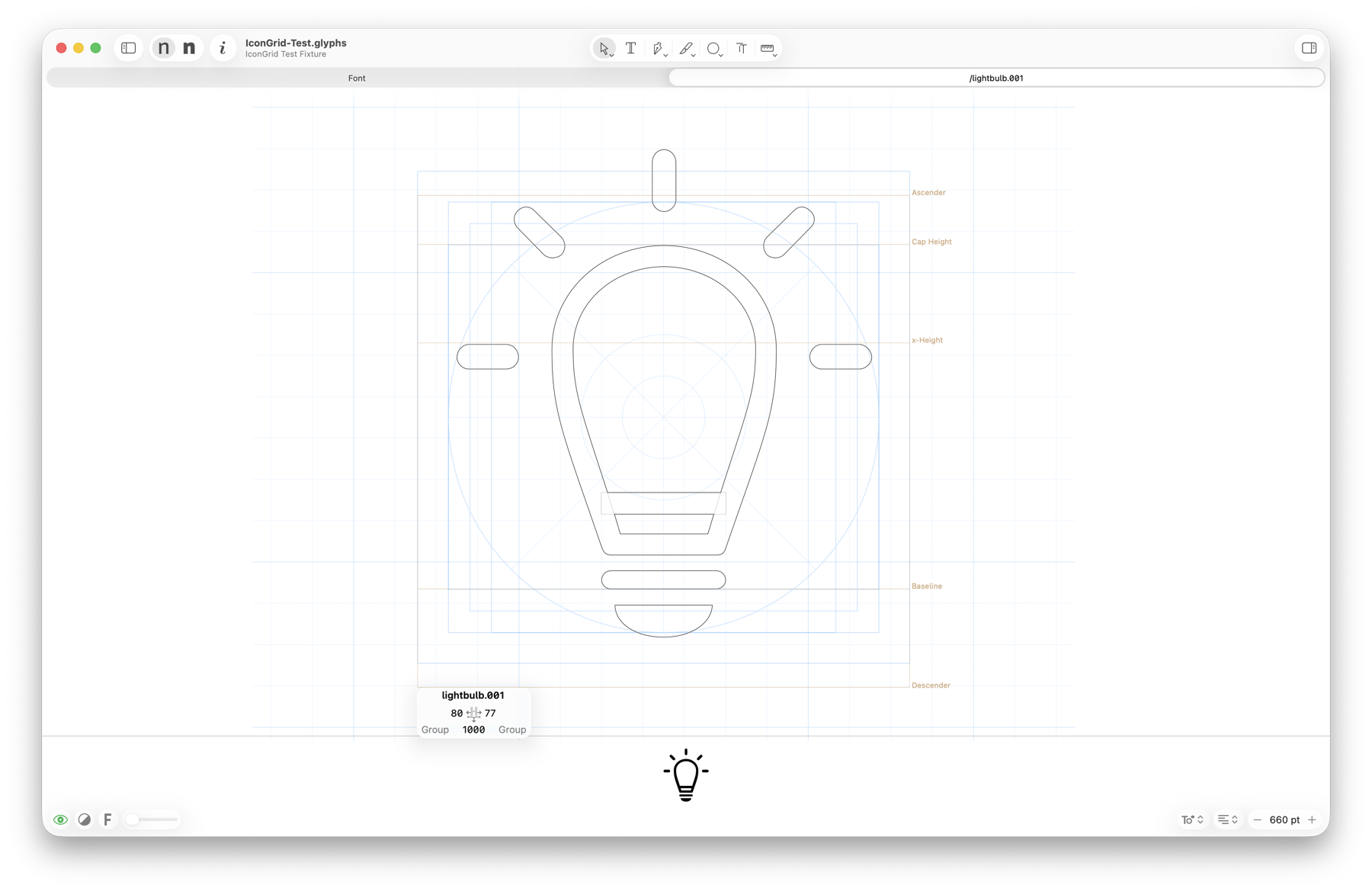
Install · official listing in progress
The GlyphsIconGrid listing is being reviewed in the official Glyphs package repository. Once the pull request is merged, Plugin Manager will be the recommended way to install and update the plug-in.
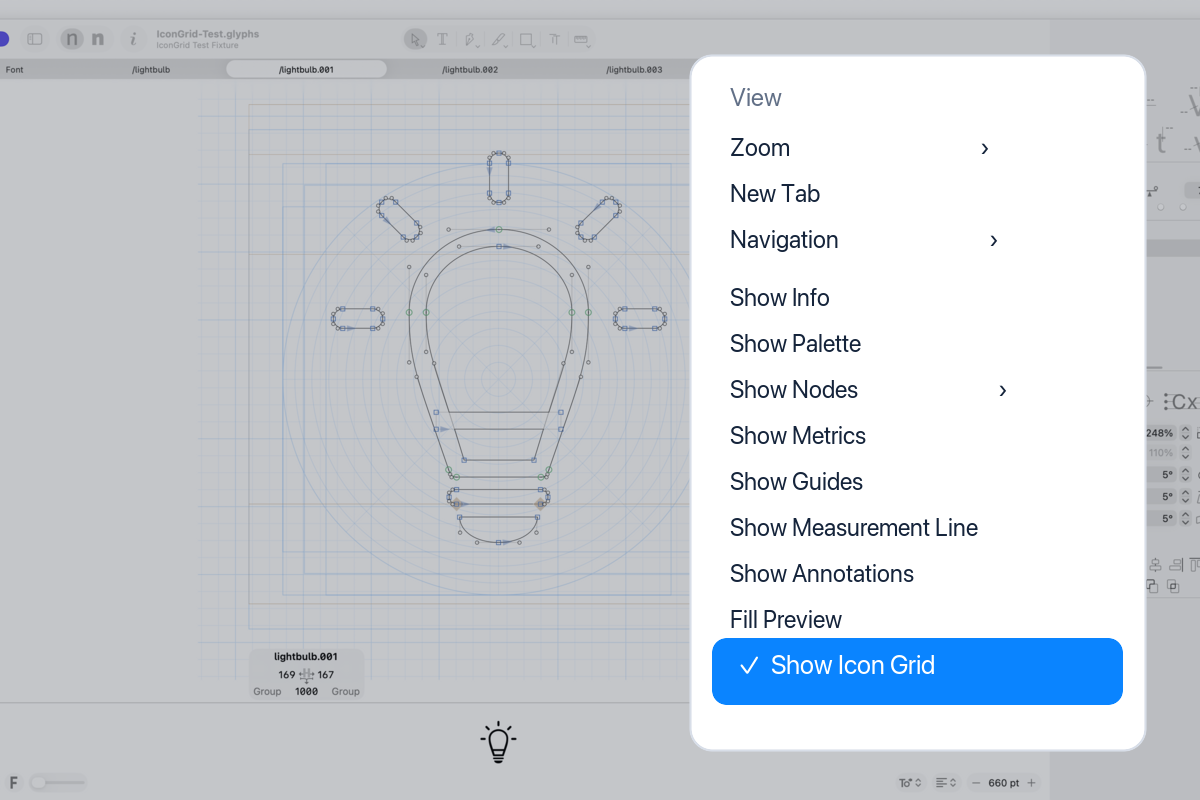
After either installation method, restart Glyphs, open a glyph in Edit view, and choose View → Show Icon Grid.
Weight-matched setup · 1000 UPM
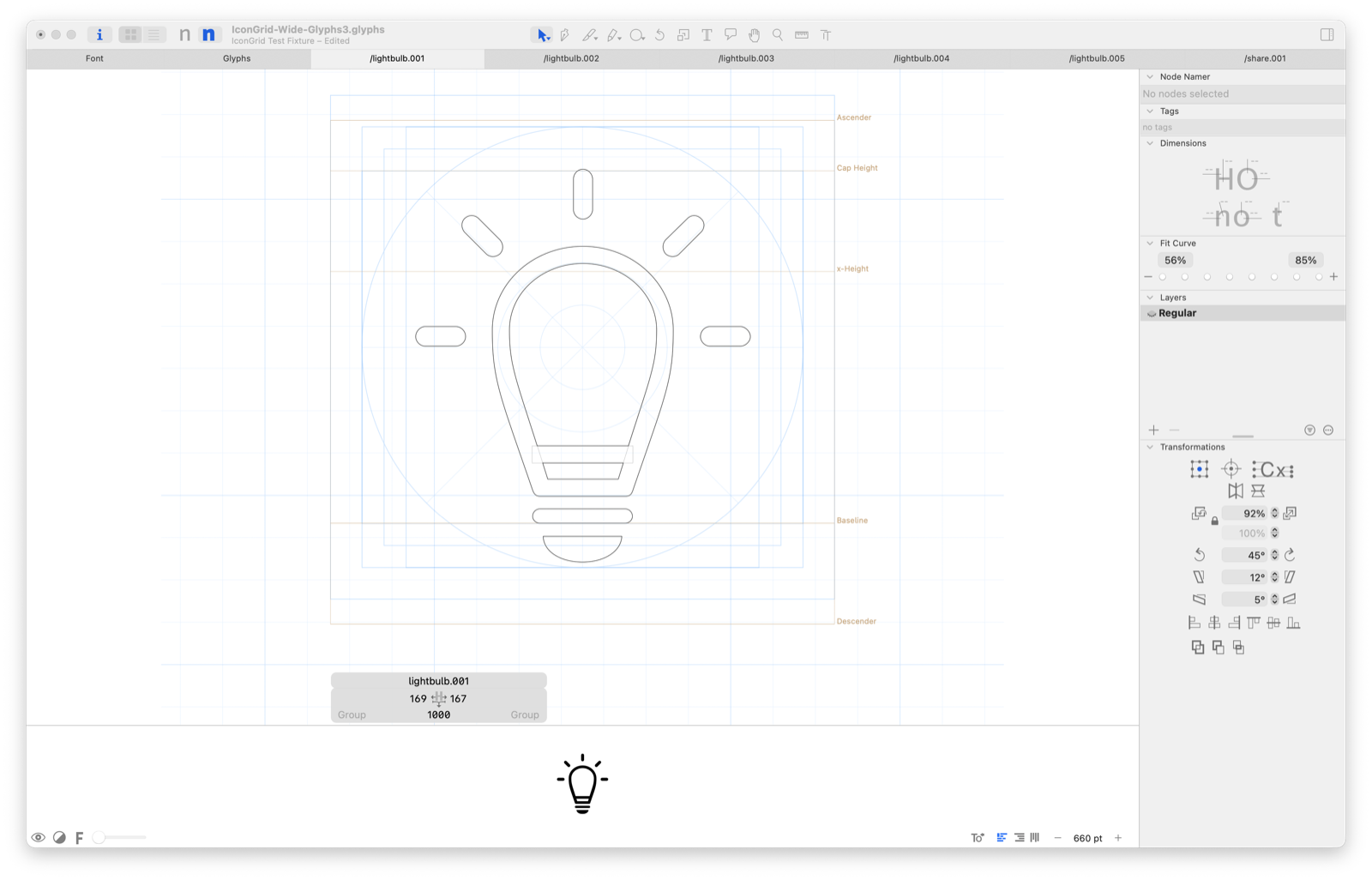
Define weight-specific stems under Font Info → Masters → Stems. No IconGrid.gridSize parameter is needed: the same value controls square cells and the distance between up to two inner circles. The background grid extends at least four cells beyond the icon canvas.
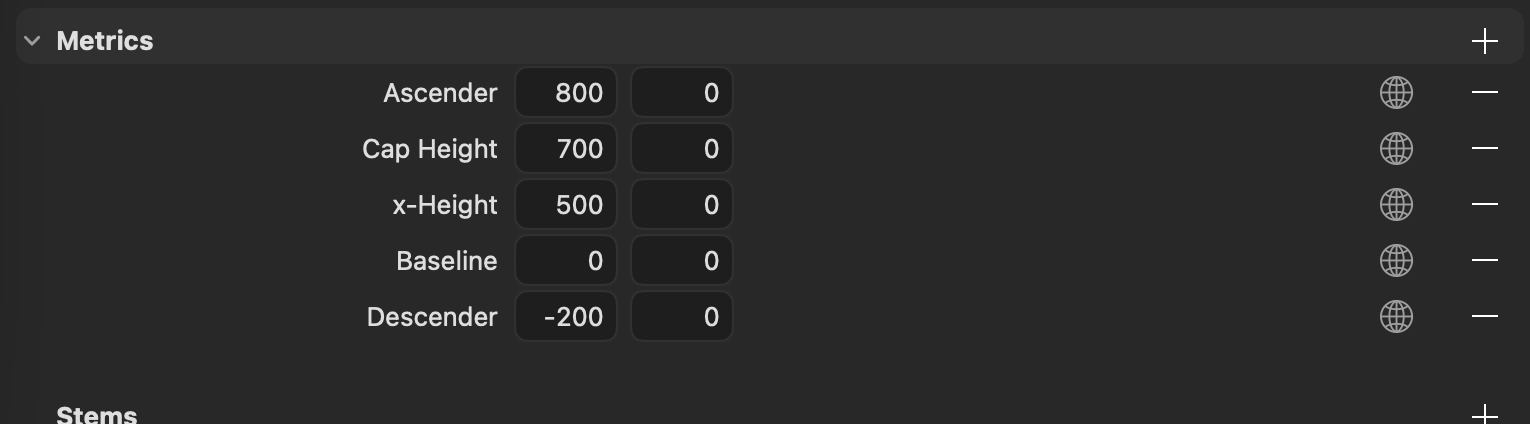
These values come from the generic icon scaffold and are starting points. Use measured H stems for an existing design. For any master, x = (cap height − baseline) / H stem. Define Mid Height under Font Info → Masters → Metrics when the family has a master-specific construction center. When an unfiltered native Mid Height exists, the complete construction system centers on that position; otherwise it uses the baseline/cap-height midpoint. Mid Height overshoot is ignored, and an explicit IconGrid.baselineOffset still wins.
The live diameter remains (cap height − baseline) / 0.8: 875 units at the default cap height. The landscape keyline spans baseline to cap height when their midpoint is the construction center; a distinct Mid Height moves it without resizing it.
Grid phase
In odd mode, one complete cell is centered on the horizontal and vertical construction axes. Use even only when grid borders must coincide with both axes.
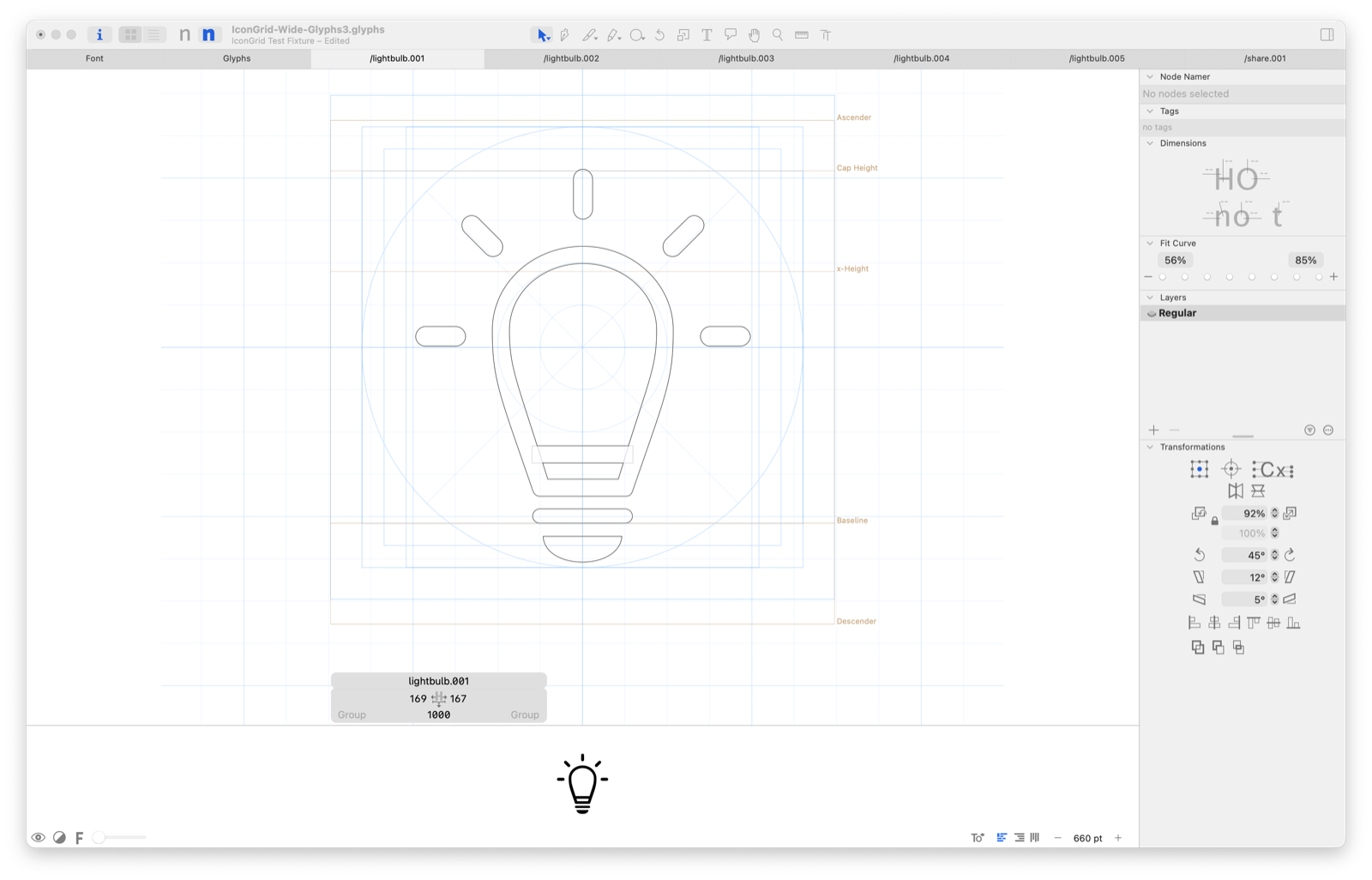
New in 0.3.0 · Right-click in Edit view
With View → Show Icon Grid enabled, right-click in Edit view and open the Icon Grid submenu. Each centering command calculates one horizontal coordinate for the active layer and stores that fixed value. The grid does not follow the artwork afterward.
Uses the midpoint of the combined bounds of the selected paths. Components are not included in this selection-based command.
Uses the current combined bounds of every path and component on the layer, regardless of selection.
Captures the current midpoint of the layer’s advance width and also works when the layer is empty.
Removes the layer override and returns the grid to its configured origin behavior.
The setting is layer-specific and horizontal only. Moving artwork, changing roles, or changing advance width does not recalculate it, and no outline is moved.
Options
Each setting resolves independently. A valid active-master value wins, then a valid font value, then the built-in default. Disabled or invalid values fall through safely.
Use each master’s H stem. Set gridSize only for an intentional override.
The live area fits the cap height automatically. Store padding only for a custom cell-based inset; cadence, spokes, and keylines already have useful defaults.
Color and opacity, with a blue default that stays distinct from Glyphs guides.
Use the right-click Icon Grid submenu to capture one horizontal coordinate for the active layer. The value stays fixed as the drawing changes.
Use each master's native Mid Height when available. Width, height, columns, rows, rings, origin, and baseline offset remain available for custom canvases.
Glyphs MCP
Start Glyphs MCP with the Edit profile, connect to http://127.0.0.1:9680/mcp/, and install this repository’s Icon Grid skill. The skill identifies the font, previews changes, applies only confirmed values, reads them back, and leaves the font unsaved. It can also inspect, set, or reset a fixed per-layer com.litsquare.icongrid coordinate without changing artwork or semantic roles.
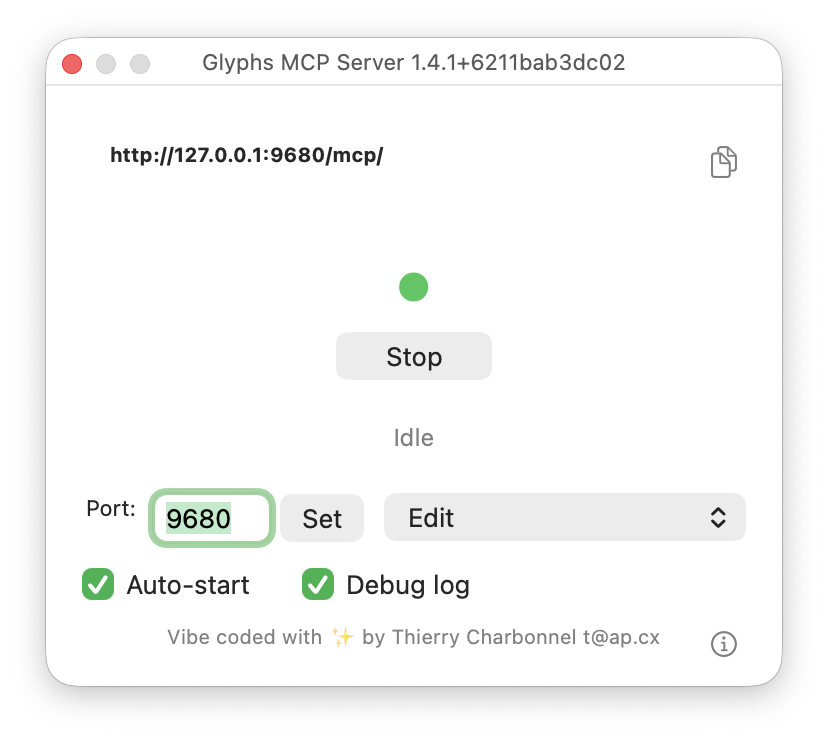
Use it after Glyphs MCP and the Icon Grid skill are installed. This is a read-only check: the AI explains the grid values without changing or saving the font.
Use $glyphs-mcp-icon-grid with the font open in Glyphs.

Check the grid size for each master.
Explain where each value comes from.
Do not change or save the font.
Expected explanation: when IconGrid.gridSize is not stored, the grid automatically uses each master’s H stem—84 for Regular and 135 for Bold in this example.
Double-click Install GlyphsIconGrid Skill.command in the unzipped release and choose the shared location. Then add the MCP server to ~/.codex/config.toml.
[mcp_servers.glyphs-mcp]
url = "http://127.0.0.1:9680/mcp/"
Double-click Install GlyphsIconGrid Skill.command and choose Claude. Then connect the local server:
claude mcp add --scope user --transport http glyphs-mcp \
  http://127.0.0.1:9680/mcp/
Double-click Install GlyphsIconGrid Skill.command and choose the shared location. Add httpUrl under mcpServers in ~/.gemini/settings.json.
"glyphs-mcp": {
  "httpUrl": "http://127.0.0.1:9680/mcp/"
}
Double-click Install GlyphsIconGrid Skill.command and choose the shared location. Put the Streamable HTTP server in ~/.cursor/mcp.json.
"glyphs-mcp": {
  "url": "http://127.0.0.1:9680/mcp/"
}
The MCP endpoint is local to your Mac. A browser-only AI session normally cannot reach 127.0.0.1.